Project > Actions > Restore > Set new Expiration Date
There are several choices to reactivate the project. Click the Actions button, or the Gear icon.
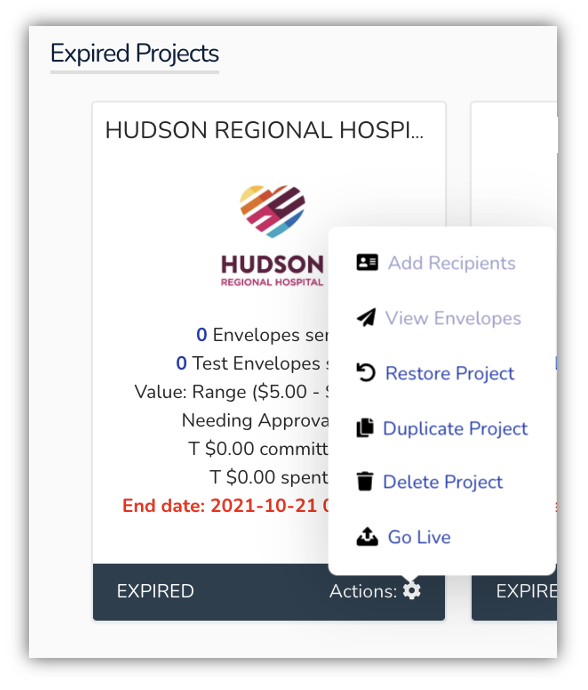
- Restore Project – A box will pop up and be sure to add the new project end date.
- Duplicate Project – A box will pop up asking you to rename the new project. Once created, add the new project end date. You will then be able to edit the new project.
- Go Live – Expired Project becomes active again.
Leave a Reply
You must be logged in to post a comment.